Powering the Development of the Real Estate Sector with MobySuite

Avatar img
Stella Vargas
Líder de contenido @Kushki
agosto 25, 2020
Lectura de 2 minutos
Powering the Development of the Real Estate Sector with MobySuite

Driving the development of the real estate industry with MobySuite

Digital media have set an important milestone in the commercialization of goods and services, and the real estate sector is not an exception. Digital platforms already were the preferred means for the purchase and rent of properties. Then, the COVID-19 pandemic forced us to confinement, increasing the need of businesses to adopt new technologies and transform themselves digitally.

Given this need, PropTech (property technology) enterprises keep finding the best way to apply technology to the refinement, improvement and reinventing of the real estate sector.

One of these companies is MobySuite, which, with its real estate software 100% online, supports the property purchase process from the first contact by the potential owner to the time of handing over the property. They provide assistance in customer service (in-person and remotely) and also in the reservation and payment management process.

In this way, Mobysuite improves the experience of property purchase and selling by providing help and opening possibilities for all the stakeholders involved in the process:

  • For buyers, to make the payment of their installments remotely.
  • For real estate agencies, to automate their business flow and keep it updated in real time.
  • For customers (property owners), to make reservation agreements for property, to pay reservations (with Visa and Mastercard), and download agreements in an easy and automated way. Among other things.

The role we play in LatAm development

Our commitment to promoting the development of the LatAm economy is what keep us together. In the end, we all want to generate the necessary transformation in the financial and real estate market, working with passion and developing the cutting-edge technologies adapted to the needs of customers and users.

Together we offer a solution for real estate agencies so that they can manage their processes safely, efficiently and intuitively. Making possible on their part, the access and payment of real estate services for customers who need them, thus keeping the economy of these countries in motion.

Be the life of the party with the latest information on digital payments.

Subscribe to our Kushki Hub to receive alerts about our new content.

Suscribe illustration
Don't know which product is right for your business?
Does the world of payments catch your attention?

More about our kushki Hub

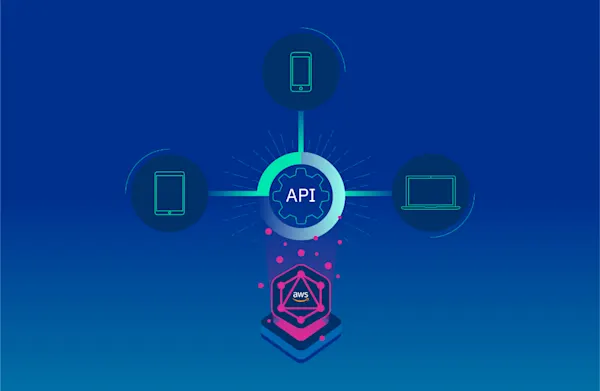
Create your first GraphQL API using AWS AppSync

Create your first GraphQL API using AWS AppSync

We have a lot to share about this topic. So if you want to learn, read carefully. First, you want to know that the information will be divided in two parts: In this article, we will address basic concepts of GraphQL. We will design a simple API from scratch, and we will deploy it using AWS AppSync and Serverless Framework. In the second part, we will create a client-side application to consume the API. We will use Amplify+React JS framework, and we will fit our API with more features by using subscriptions for a case of real-time use. What is GraphQL? GraphQL is a data query language for APIs, the essential idea is to make the API available through a single endpoint, instead of accessing several endpoints, as it is currently done with REST. Among the advantages of GraphQL we can list the following: Customers can specify exactly the structure of the data that will be served. Efficiency in data loading, improving bandwidth use. Declarative and self-documenting style, thanks to its strongly typed schemas. Schemas Schemas determine APIs capacity and define three basic operations: query, mutation, subscription. It also includes entry parameters and possible responses. Resolvers Resolvers implement APIs and describe the server's behavior. They are basically functions that are in charge of obtaining data for each field defined in the schema. AWS Appsync + Serverless Framework AppSync is a serverless service managed by AWS; it is GraphQL layer that will help us to develop our API smoothly. It is important to know AppSync basic components: Schema: As we said before, it will help us to define basic types and operations to retrieve and save data. Resolvers: They define query mapping templates and response templates for each field defined in the schema. They are written in VTL and are responsible for interpreting the responses from data sources; they also analyze queries. Data sources: Integration with AWS services: DynamoDB, Lambda, RDS, and ElasticSearch. Authentication: We can authenticate APIs by using API keys, IAM or Cognito User Pools As we can see, AppSync provides some tools to build a GraphQL API smoothly. We just follow a series of steps in the AWS AppSync console and, in a few minutes, we will have a functional app. However, we prefer to do it in a way that keeps it closest to the reality of modern production applications. Here's where Serverless Framework comes into play: A robust technology for defining infrastructure as code focused in serverless applications for different cloud providers. At Kushki, we believe that, nowadays, having a versioned and automated serverless infrastructure is crucial. We will see that it is a practical and efficient way of implementing our API. Serverless features several options to deploy AppSync in the cloud. Let's start to put into practice all these concepts by creating a simple application. The application: To-do List In this first part of the article, we will create a GraphQL API of a CRUD To-Do List. We will use DynamoDB for the database. Requirements: NodeJS An account in AWS (set up credentials) Serverless Framework Let's start installing Serverless Framework and a plugin for Appsync: npm install -g serverless serverless-appsync-plugin In the main directory of the project, we will execute the following command to create a template containing the configurations we need to create a serverless application in AWS. serverless create --template aws-nodejs Note: Add serverless-appsync-plugin in the plugins section of the serverless.yml file: First, we'll define part of our infrastructure. To do this, we will create an all table in DynamoDB, in serverless.yml. At this moment, we will not worry about multiple configurations, the following fragment of code will be enough: yml resources: Resources: all: Type:"AWS::DynamoDB::Table" Properties: TableName: all AttributeDefinitions: - AttributeName: id AttributeType: S KeySchema: - AttributeName: id KeyType: id KeyType: HASH BillingMode: PAY_PER_REQUEST Define a GraphQL Schema In the root file, create a schema.graphql file. Here is where we will define our schema and data types. For the moment, we will define the query and mutation operations. GraphQL has its own syntax, called SDL, here you can learn more about this topic. query: Query mutation: Mutation } type Query { listToDos: [ToDo] getToDoById(id: ID!): ToDo } type Mutation { createToDo(input: CreateToDoInput!): ToDo updateToDo(input: UpdateToDoInput!): ToDo deleteToDo(id: ID!): Boolean } type ToDo { id: ID! name: String title: String! description: String completed: Boolean! } input CreateToDoInput { id: ID! name: String! title: String! description: String! completed: Boolean! } input UpdateToDoInput { name: String! title: String! description: String! completed: Boolean! } ``` Remember that for each field you define, you need to implement a resolver. In this case, our resolvers are queries for DynamoDB, written in VTL. There are some utility functions that will make its implementation easier, for more information on resolver mapping templates, you may [check this link.](https://docs.aws.amazon.com/es_es/appsync/latest/devguide/resolver-mapping-template-reference-overview.html) ### createToDo Resolver: We will create a mapping-templates directory in the root file of the project where we are hosting **the query and response resolvers** for each field created in the schema. **Request**: Create a createToDo-request.vtl file and insert the following code: json { "version" : "2017-02-28", "operation" : "PutItem", "key" : { "id" : $util.dynamodb.toDynamoDBJson($context.arguments.input.id) }, "attributeValues" : { "name" : $util.dynamodb.toDynamoDBJson($context.arguments.input.name), "title" : $util.dynamodb.toDynamoDBJson($context.arguments.input.title), "description" : $util.dynamodb.toDynamoDBJson($context.arguments.input.description), "completed" : $util.dynamodb.toDynamoDBJson($context.arguments.input.completed) } } Using the variable $context.argument we can have access to the entry parameters that we have defined in our schema. **Response:** Create a createToDo-response.vtl file and insert the following code: json $utils.toJson($context.result) Do not worry about how data are obtained from DynamoDB, AppSync performs the connection with data sources, returns data in the variables $context.result and $utils.toJson, and displays them in an readable format for GraphQL. If you want to process these data in the resolver, you can do it using VTL. ### updateToDo Resolver: **Request:** Create an updateToDo-request.vtl file and insert the code below; in this case, we will use an UpdateItem operation of DynamoDB: json { "version" : "2017-02-28", "operation" : "UpdateItem", "key" : { "id" : $util.dynamodb.toDynamoDBJson($context.arguments.input.id) }, "update" : { "expression" : "SET name = :name, title = :title, description = :description, completed = :completed", "expressionValues": { ":author" : $util.dynamodb.toDynamoDBJson($context.arguments.input.name), ":title" : $util.dynamodb.toDynamoDBJson($context.arguments.input.title), ":content" : $util.dynamodb.toDynamoDBJson($context.arguments.input.description), ":url" : $util.dynamodb.toDynamoDBJson($context.arguments.input.completed) } } } **Response:** Create a createToDo-response.vtl file and insert the following code: json $utils.toJson($context.result) ### getToDoByID Resolver: **Request:** Create a createToDoById-request.vtl file and insert the following code: json { "version" : "2017-02-28", "operation" : "GetItem", "key" : { "id" : $util.dynamodb.toDynamoDBJson($context.args.id) } } **Response:** Create a getToDoById-response.vtl file and insert the following code: json $utils.toJson($context.result) We will define our AppSync infrastructure and the servereless.yml file, where we will define the resolvers (mappingTemplates), schema (schema), data source, and authentication type (authenticationType). It should have the following structure: ```yml service: name: appsync-todo-app-backend plugins: - serverless-appsync-plugin custom: appSync: name: todo-app authenticationType: API\_KEY mappingTemplates: - dataSource: all type: Mutation field: createToDo request: "createToDo-request.vtl" response: "createToDo-response.vtl" - dataSource: all type: Mutation field: updateToDo request: "updateToDo-request.vtl" response: "updateToDo-response.vtl" - dataSource: all type: Query field: getToDoById request: "getToDoById-request.vtl" response: "getToDoById-response.vtl" schema: # defaults schema.graphql dataSources: - type: AMAZON\_DYNAMODB name: all description: 'All table' config: tableName: all provider: name: aws runtime: nodejs12.x resources: Resources: all: Type: "AWS::DynamoDB::Table" Properties: TableName: all AttributeDefinitions: - AttributeName: id AttributeType: S KeySchema: - AttributeName: id KeyType: HASH BillingMode: PAY\_PER\_REQUEST ``` Finally, we will execute the following command to deploy our API in the AWS cloud: serverless deploy Testing our GraphQL API: ------------------------ If we open AWS AppSync console, we will see the schema, the resolvers, the authentication and the data source that we have defined. ![1](//images.ctfassets.net/51xdmtqw3t2p/38jvJWZzFIzGLXeuPAULHy/70ebd476682d5a05dd8ba70cb48839f5/1.png) On the other hand, we also have a GraphQL client that we will use to test our API. In the Figure below, we can see the API's documentation according to the schemas defined. ![2](//images.ctfassets.net/51xdmtqw3t2p/2Vc4LvOnbdPFSVrQLQxvVx/c75d14d482037f1262f9f56908cce231/2.png) When executing the createToDo **mutation operation** a registry is created in DynamoDB and returns the object created according to the defined fields. ![3](//images.ctfassets.net/51xdmtqw3t2p/2N63LoqxNDUNntXI1jyvF9/175900fec088c5ffa1b5b47f2b0278f1/3.png) ![4](//images.ctfassets.net/51xdmtqw3t2p/28XQHlO0GGHd9nfnRjuoZx/8d323149837cf818cfea1cf326678e75/4.png) To retrieve data from a ToDo, we should execute the getToDoById **query operation**. We can request the field **name** only, or those that are necessary. ![5](//images.ctfassets.net/51xdmtqw3t2p/76oayQ1SYwYAwiiwUaR2Jg/8961d007947bbde203072dc0c221dbd4/5.png) ![6](//images.ctfassets.net/51xdmtqw3t2p/4m9ABOfoYUtN0iYijubnGT/5774f1bfa0299539fc6ab49c698ff445/6.png) --- There you have: **In this article, we described GraphQL basic concepts, we designed a simple API from scratch, and deployed it using AWS AppSync and Serverless Framework.** **Remember that a second part is to come, where we will create a client-side application to consume the API. We will use Amplify+React JS framework, and we will fit our API with more features by using subscriptions for a case of real-time use.** Join us in the second part of this article!
Avatar img
Alex Suquillo
Software Developer
agosto 17, 2020
Kushki Arrives at Mexico

Kushki Arrives at Mexico

Kushki arrives in Mexico! "For some time now, we have seen in Mexico a very big opportunity for development", said our founder, Sebastián Castro, during an interview with Forbes Mexico. So we are happy to announce that we have opened our offices in this country. Despite the COVID-19 pandemic, this year has brought many opportunities for Kushki because the confinement led many businesses to make their payments digital or to expand their payment channels to include wire transfers, credit or debit cards, and even cash. Sebastián says: “companies we talked to earlier in the year and that didn't have in mind to take the next step to this phase, found us later to start with it immediately. All this has become a strong impulse for us, and we don't think that it will stop in the future”. In this way, we continue to grow, we succeeded in reaching Mexico, and opened our offices in the country with the help of our investor, DILA Capital, which has been a big ally in this process. Mexico has a great development potential with regards to payment channels Around 96% of the businesses are still run offline, as Sebastián pointed out in his interview with Forbes. This country and its inhabitants, as well as all in Latin America, would obtain great benefits from digital transformation, and we want to be part of this process. After all, we want to connect Latin America with our payment platform. If you want to know more about this, we invite you to read the Forbes article: La Fintech Kushki quiere hacer de México su principal fortaleza en Latam (The fintech Kushki wants to make Mexico its main fortress in Latam).
Avatar img
Stella Vargas
Líder de contenido @Kushki
agosto 11, 2020
A/B testing using Google optimize

A/B testing using Google optimize

Do you think that your website could have a better conversion rate or more visits if you make some changes? Did your developer or marketing team suggest you to modify some things, but you are not totally sure or convinced that it is the best thing to do? Here we will show you how to perform tests on two or more versions of a website using a very useful tool by Google, called Optimize. Thus, you will be able to decide what works best in your site, based on actual data, instead of making assumptions. First, What is A/B Testing? In the first place, you must know that, an A/B test is a random experiment in which two or more variants of the same website (A and B) are used. Variant A is the original, and variant B (or C, D, F, or as many variants as needed) contains at least one modified element in the page. The idea is to check which of all versions is the most efficient or has a better performance, depending on your objectives. The development of these tests can be confusing at the beginning, so it is advisable to start doing small experiments, such as changing the color of a button or removing an unnecessary field from a form. When you have got used to creating variants and experiments, you may expand the scope of your tests. Performing tests with your website can help you to reduce bounce rates (people who abandon your page), improve your content and increase your conversion rates, among other things. However, this is not always the most advisable option. You should not use A/B tests when: You have few visits, because it would be more desirable to focus your efforts in increasing your traffic before performing any tests. Your page has programming problems or something is not working properly. Focus on solving this first. The cost of performing these experiments is greater than the profit they can provide you. Second, What is Google Optimize? It is a Google platform that allows users to perform different A/B testing campaigns. The most interesting thing about Google Optimize is that it takes A/B Testing to the next level, allowing you to show two or more variants of a website to the users (up to 5, with the new update of the platform). Another interesting functionality are the redirect tests(or redirection tests). These allow you to perform tests in independent websites by sending a percentage of your traffic to one website version and a percentage to another. Why Use Google Optimize? Apart from multivariate or redirection tests, some of their numerous advantages, we can highlight the following: Connection and integration with Google Analytics 360 suite. Potential for deeper analyses directly from Google Analytics interface. User-friendly visual editor for anyone with no coding background, for the creation of simple experiments. Now, you know what A/B testing is and why applying it in Google Optimize is a great alternative; let's see what are steps to follow for implementing it. Then, we will create a small project using Angular in which we will change the style of a button. We will make it more noticeable, and we will check the number of times that users click on it. State a Hypothesis Before creating an experiment for the first time, it is of great help identifying the problem you have to solve, and then, stating a hypothesis about what you might change to improve it. Once your hypothesis is ready, evaluate under several parameters, such as its level of reliability, its impact on macro objectives and how easy it is to configure it, etc. For example, let's say that a website is not 'converting' as much as you expected (defining “convert” as actions such as closing a sale or generating a registry). After analyzing all the possible causes for your results, you have determined that changing the call-to-action (CTA) button could influence the result. A possible hypothesis could be that, if you change the color of the call-to-action button, the conversion rate would improve by a 20%. Create an Experiment Using Google Optimize When you have defined your hypothesis, it is time to install the Google Optimize tool in your website to enable testing. You should have created a Google Optimize account before this. If you do not have one yet, go here and create your free account. Create a New Experience Once your account has been created, log in to the platform to start doing A/B tests. In the first place, you should create a new experience, this is where you will configure your experiments. Then, select "A/B test". Add a New Variant You can add up to five variants per experiment, and they can be edited later. After creating a variant, you have to edit its content; you will need to install the Chrome extension that is available here. Then, click on the Edit Button of the created variant and, if you already have a Google Optimize extension, a web editor will be displayed. We will use this editor to make the changes that we stated in our hypothesis. For our current example, change the color of the button from white to blue, and add an icon to it. Also, rename the Web page as “Version B”. The result obtained should be the following: Also, assign the website traffic redirection value to 50%, so that you can demonstrate your results quickly. Linking Google Analytics to Google Optimize To link these two services, insert the script below in the index.html file of your project; this will allow the data obtained to be sent to Google Analytics. It is important to insert this script, as it will help you to obtain information on the objectives established for the experiment and demonstrate the results using Google Analytics. (function(i,s,o,g,r,a,m){i['GoogleAnalyticsObject']=r;i[r]=i[r]||function(){ (i[r].q=i[r].q||[]).push(arguments)},i[r].l=1*new Date();a=s.createElement(o), m=s.getElementsByTagName(o)[0];a.async=1;a.src=g;m.parentNode.insertBefore(a,m) })(window,document,'script','https://www.google-analytics.com/analytics.js','ga'); ga('create', 'UA-XXXXXXX-X', 'auto'); ga('require', 'GTM-XXXXXX'); ga('send', 'pageview'); It is also important for you to install a Google Optimize snippet for the experiment to render the two versions of your website. 1. Define the objectives of the experiment. Now, define the objectives of your experiment, you may choose them from a default list or you may create a personalized objective. This time, we will create a customized objective to register the number of clicks by users in the two versions of the website. For this experiment, the event Label was: “Click Blue Button” Test your experiment configuration It is important to verify that the configuration is correct; otherwise, the experiment will not render your website's Version B. For this, click on Verify Installation in the Configuration section of the Google Optimize snippet. This message should appear on screen: Send events Finally, send the click event to google Analytics. To do this, create a service in your Angular project; it will be responsible for triggering the event when you click on the button. This is the service: After defining the experiment criteria, you will be able to execute it. If you access from the browser to the website, you will see Version B. You can find the Angular project code here. Concluding the Experiment To observe the results of our experiment, we can log in to Google Analytics console. In the Event's section, we can check the number of calls to the event created: “Click Blue Button”. This number exceeds the number of times that the white button was clicked in more than 20%, and we could test the hypothesis that we stated for our experiment. How Long should the Experiment Last? According to Google's official documentation, it is recommended to continue the experiment until at least one of the following conditions has been fulfilled: That two weeks have elapsed, in order to observe cyclical variations in the web traffic of a whole week. At least one of the variants must show a 95% probability of exceeding the reference value (current website traffic before making any modifications). We hope that this article has been useful for you to perform tests on your website and to provide validated knowledge for decision-making in your website's or app design or user flow.

Avatar img
Francisco Limaico
Software Developer
agosto 03, 2020